Reference
Backup, license & data
Last updated: November 2026
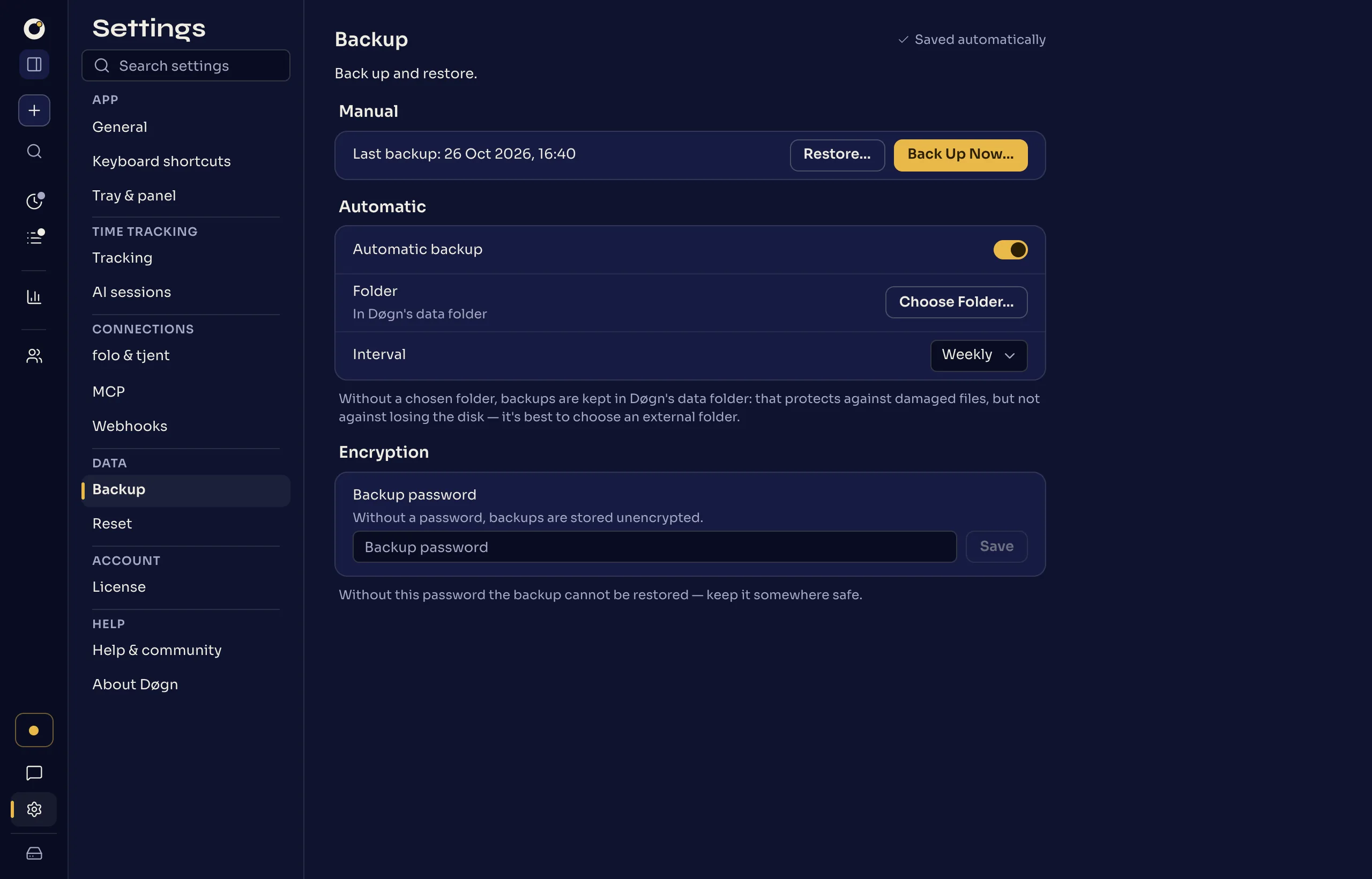
Your data lives on your computer, so the backup lives there too. Døgn backs up on its own out of the box. The bottom of the sidebar always shows when your last backup was.
Automatic backup
Since version 0.17, “Automatic backup” is switched on out of the box, weekly. As long as you haven’t chosen a folder, the backups go into Døgn’s data folder. That protects you from a damaged file, but not from a broken disk. So use “Choose Folder…” to pick a folder on another drive. The intervals are “Daily”, “Weekly” and “Every 2 weeks”.
With a “Backup password”, new backups are encrypted. Without a password they aren’t.
Important: without this password the backup cannot be restored. Keep it somewhere safe.
When a backup fails
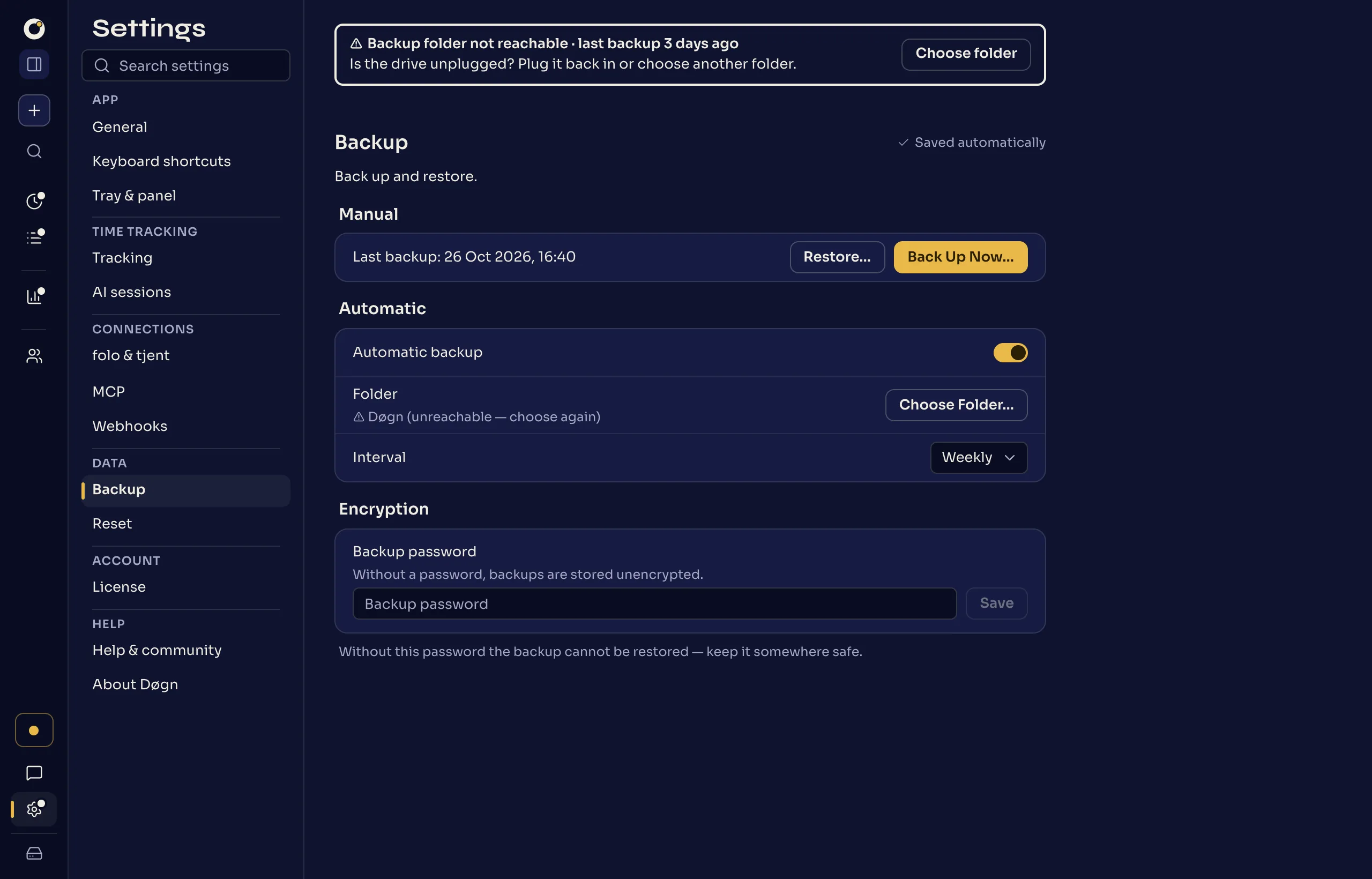
If the backup folder can’t be reached, say because the drive isn’t plugged in, Døgn shows a notice at the top of the main window that the folder can’t be reached, and when the last backup was. Plug the drive back in or choose another folder.
If a backup fails for another reason, Settings › Backup says so, with the time and the reason.
Back up and restore by hand
“Back Up Now…” under Settings › Backup writes your entire data set to a file. “Restore…” plays one back. Døgn first shows you what the backup contains and makes a safety copy of your current data. Then Døgn quits and you start it again.
You can also restore backups from the earlier Døgn for the Mac this way.
License
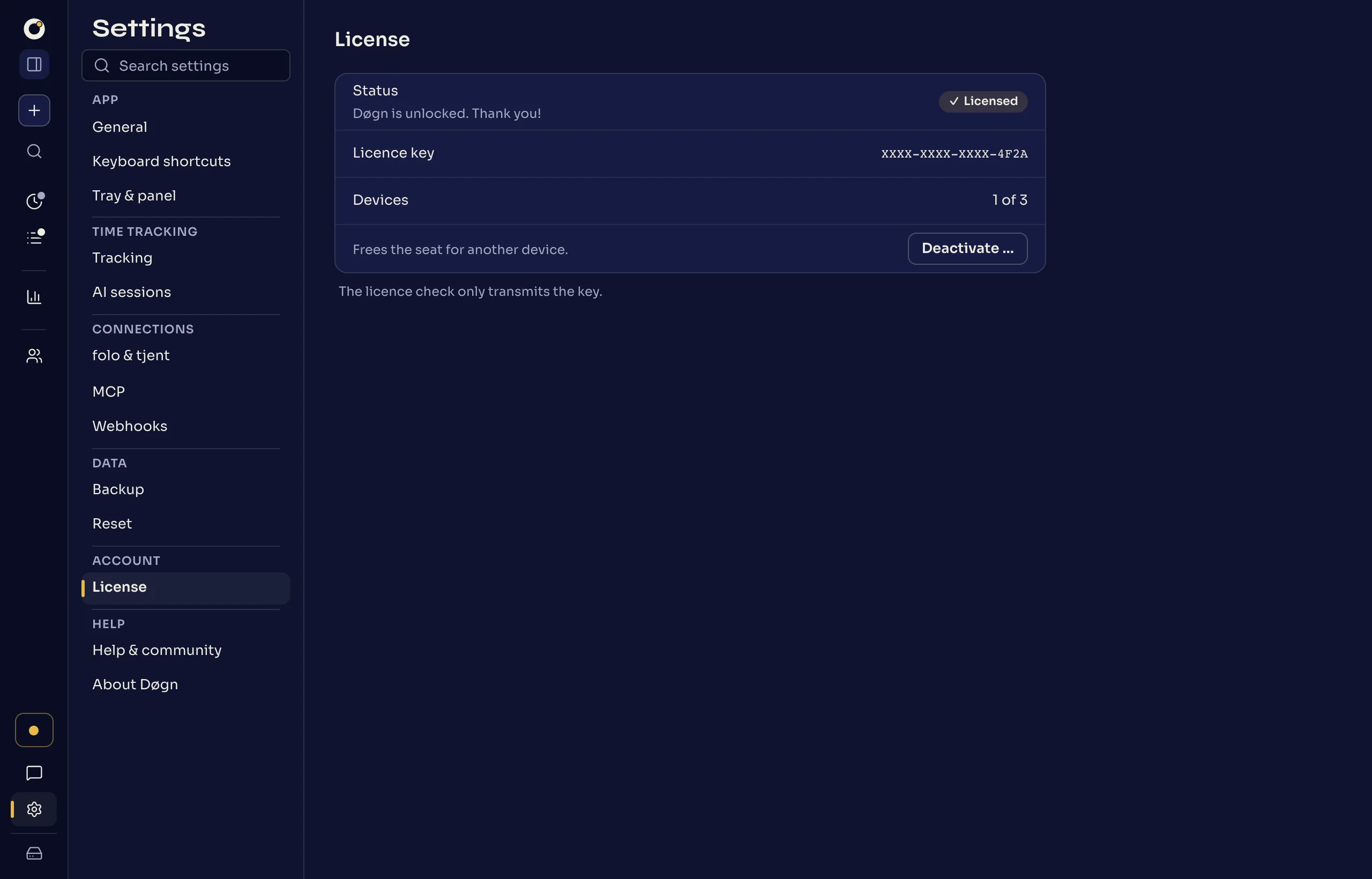
You pay once. Enter your license key under Settings › License, where you also see how many devices it runs on. Changing computers? “Deactivate …” frees the seat. The license check sends only the key.
Until December 1, 2026, Døgn is in early access and needs no license. Then your 14-day trial starts. After that, without a valid license everything stays readable: entries, reports and clients stay visible, exports and backups keep working. Only tracking new time and changing data needs a license again.
Once licensed, Døgn confirms the license online every 14 days. If that fails, say because you’re offline on the road, Døgn keeps working for another 14 days and shows the days left. After that it is read-only until the next check succeeds. Connecting to the internet once is enough.
Reset
Final: “Reset All Time Entries” under Settings › Reset deletes every time entry, running ones included. Clients and projects stay. Døgn makes a safety copy of the database first, and you confirm the step once more.