Learning path
Introduction
Last updated: November 2026
Døgn shows you where your day went. You start a timer with one click, you work, and at the end of the month you see hours and money per client. Døgn runs on the Mac, on Windows and on Linux. Your times stay on your computer, and you don’t need an account.
The main window
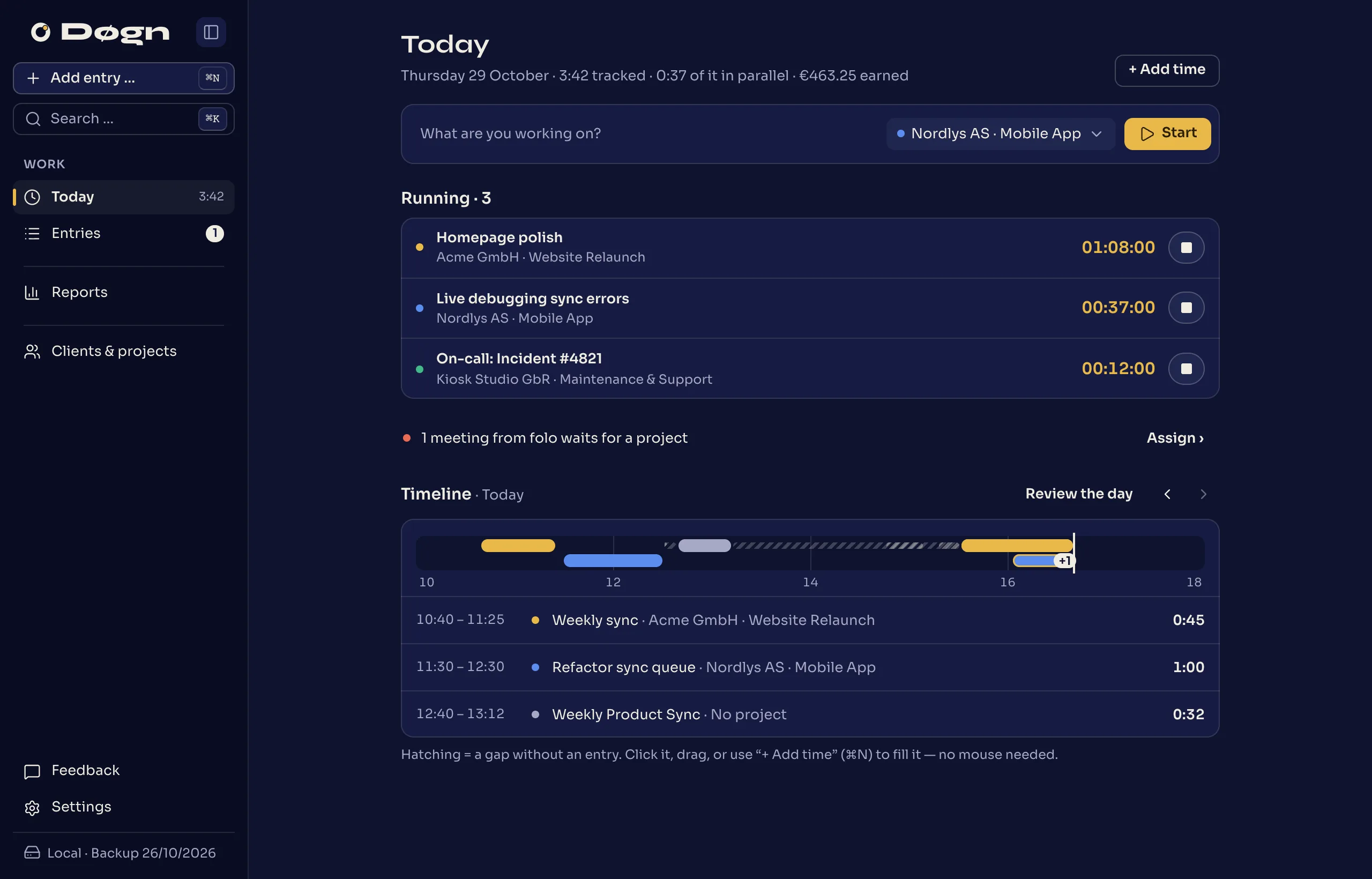
The sidebar sits on the left, you work on the right. There are five pages:
- “Today”. Start timers, see what’s running, fill the gaps in your day.
- “Entries”. Every tracked minute: search, correct, move.
- “Reports”. Time and earnings per client, open time, budgets, export.
- “Clients & projects”. Clients, projects, rates and budgets.
- “Settings”. A page in the same window.
Ctrl/⌘ 1 to Ctrl/⌘ 4 jump between the first four pages, Ctrl/⌘ , opens Settings. Ctrl is for Windows and Linux, ⌘ for the Mac. The whole manual writes it that way.
The panel
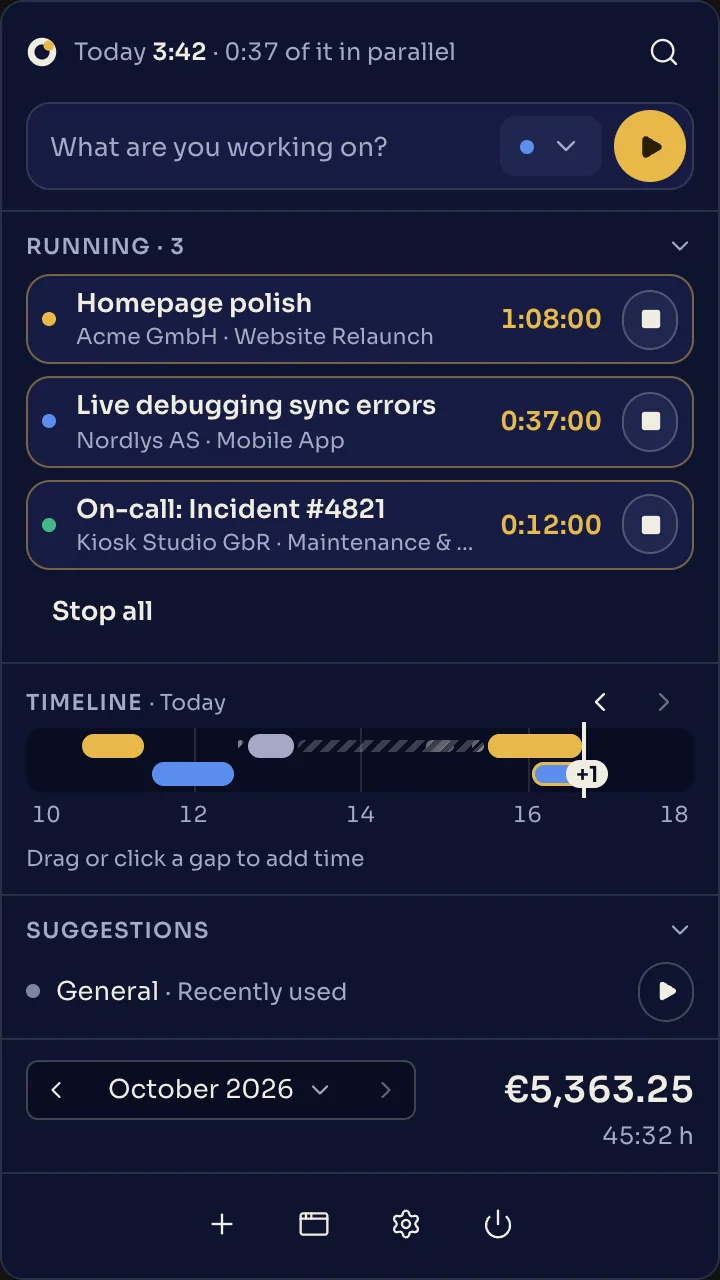
For quick moves there’s the panel. On the Mac it drops down from the menu bar. On Windows it opens at the Døgn icon in the taskbar, on Linux at the icon in the tray. If Døgn finds no tray on Linux, it shows the panel as a normal window.
A keyboard shortcut brings it up from anywhere: ⌃⌘T on the Mac, Ctrl+Alt+T on Windows, Ctrl+Super+T on Linux. In the panel you start and stop timers, see your day and add time. The icons at the bottom open add time, the main window and Settings.
A right-click on the icon opens a menu. From there you stop a timer, or start or switch to one of your recent projects. Some Linux desktops open this menu on a normal click.
What Døgn does on its own, and what it doesn’t
Døgn doesn’t guess what you’re working on. You start the timer yourself, with one click in the panel, the main window or the menu at the icon. If you forget, Døgn helps afterwards:
- Gaps. The day timeline shows where there’s no entry, and one click fills the spot.
- “Review the day”. Døgn lists what’s missing from the day and suggests entries. Only what you accept gets booked.
- Reminders. If you like, Døgn speaks up when you work without a timer or a timer runs for a very long time. That stays off until you switch it on.
Døgn counts only two things on its own: sessions with Claude Code, Codex or Antigravity once you switch that on under AI sessions, and finished calls from folo if you use folo.
How your day goes
- Set up once. Add a client and a project. That’s two names and an hourly rate.
- Track. Type what you’re working on, pick the project, start.
- Fill the gaps. Forgot the timer? You see the gap and fill it, or you review the day in the evening.
- Bill. At the end of the month Døgn shows you what’s still open. You take a PDF timesheet or hand the time to tjent.
What you need
Døgn runs on the Mac from macOS 14 (Apple silicon or Intel), on Windows 10 and 11 (64-bit) and on Linux (x86_64). You’ll find the download for your computer on the homepage: a DMG for the Mac, an installer (.exe) for Windows and an AppImage for Linux.
- Mac: open the DMG and drag Døgn into Applications. The app is signed and notarized by Apple.
- Windows: the installer isn’t code-signed yet. If SmartScreen warns you, click “More info”, then “Run anyway”. It installs for your user only and needs no admin rights. If the WebView2 runtime is missing, the installer fetches it.
- Linux: make the AppImage executable (
chmod +x, or Properties → “Allow executing”) and start it.
Windows likes to tuck new icons away behind the ^. Drag the Døgn icon onto the taskbar, then a single click opens it. On GNOME the icon needs the “AppIndicator Support” extension. Until then, open Døgn from the launcher or with the shortcut.