Learning path
Entries & adding time
Last updated: November 2026
Not every hour runs through a timer. You add forgotten time afterwards, and you correct everything that’s already there on the “Entries” page. That way you don’t have to reconstruct your Tuesday on Friday.
Add time
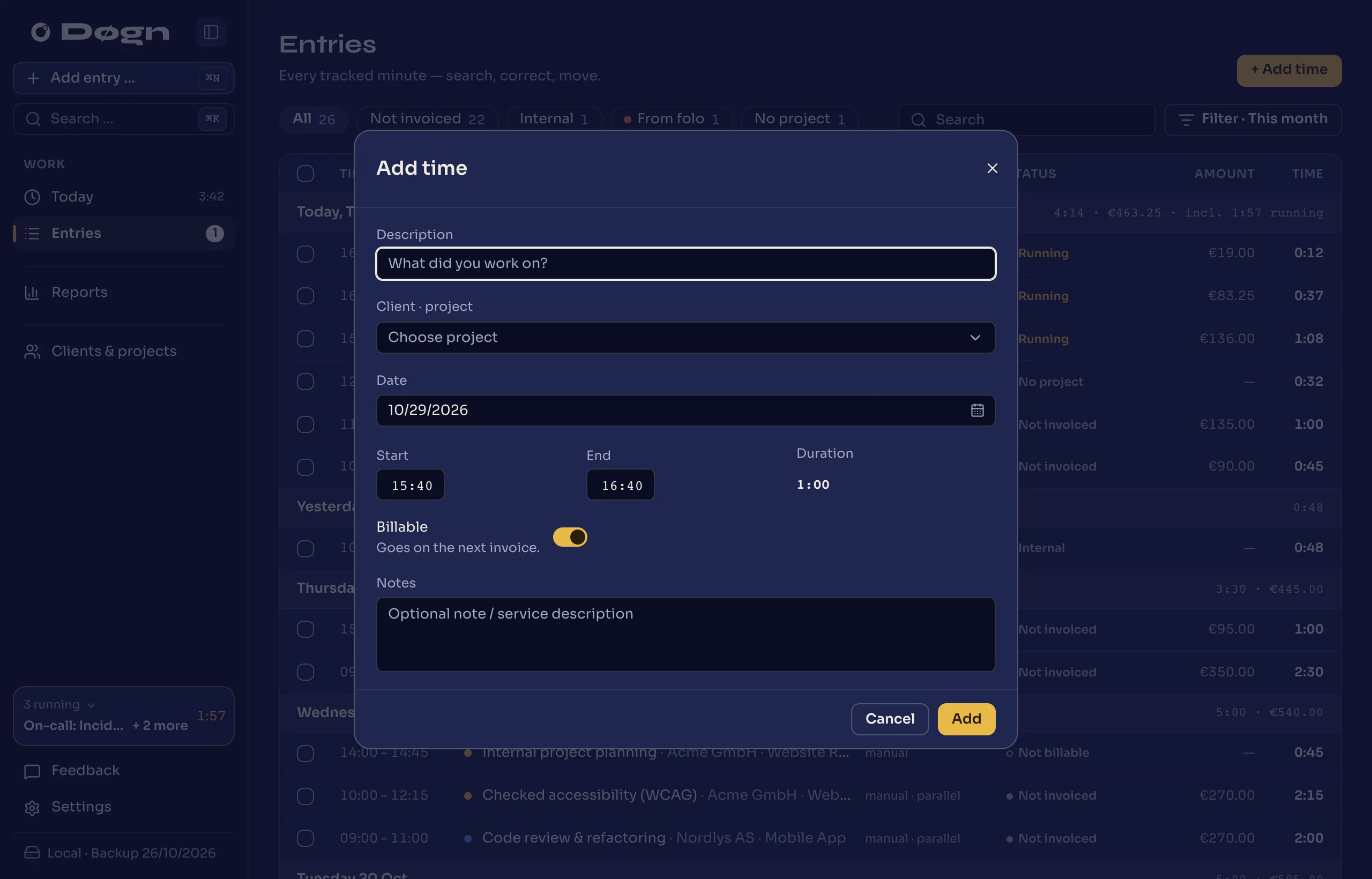
Ctrl/⌘ N or “Add entry …” in the sidebar opens the form. It’s already set to the last hour. You fill in:
- “Description”. What you worked on. For wording a client approves fast, see how to write a timesheet.
- “Client · project”. Time is always tracked on a project. If it’s missing, you can add it right here.
- “Date”, “Start”, “End”. Døgn works out the duration. If the time ends after midnight, Døgn tells you.
- “Billable”. Shows you the amount right away.
- “Notes”. Optional, for example a service description for the invoice.
“Add” saves. The duration must be more than 0 and at most 24 hours, and you can only add time that has already passed.
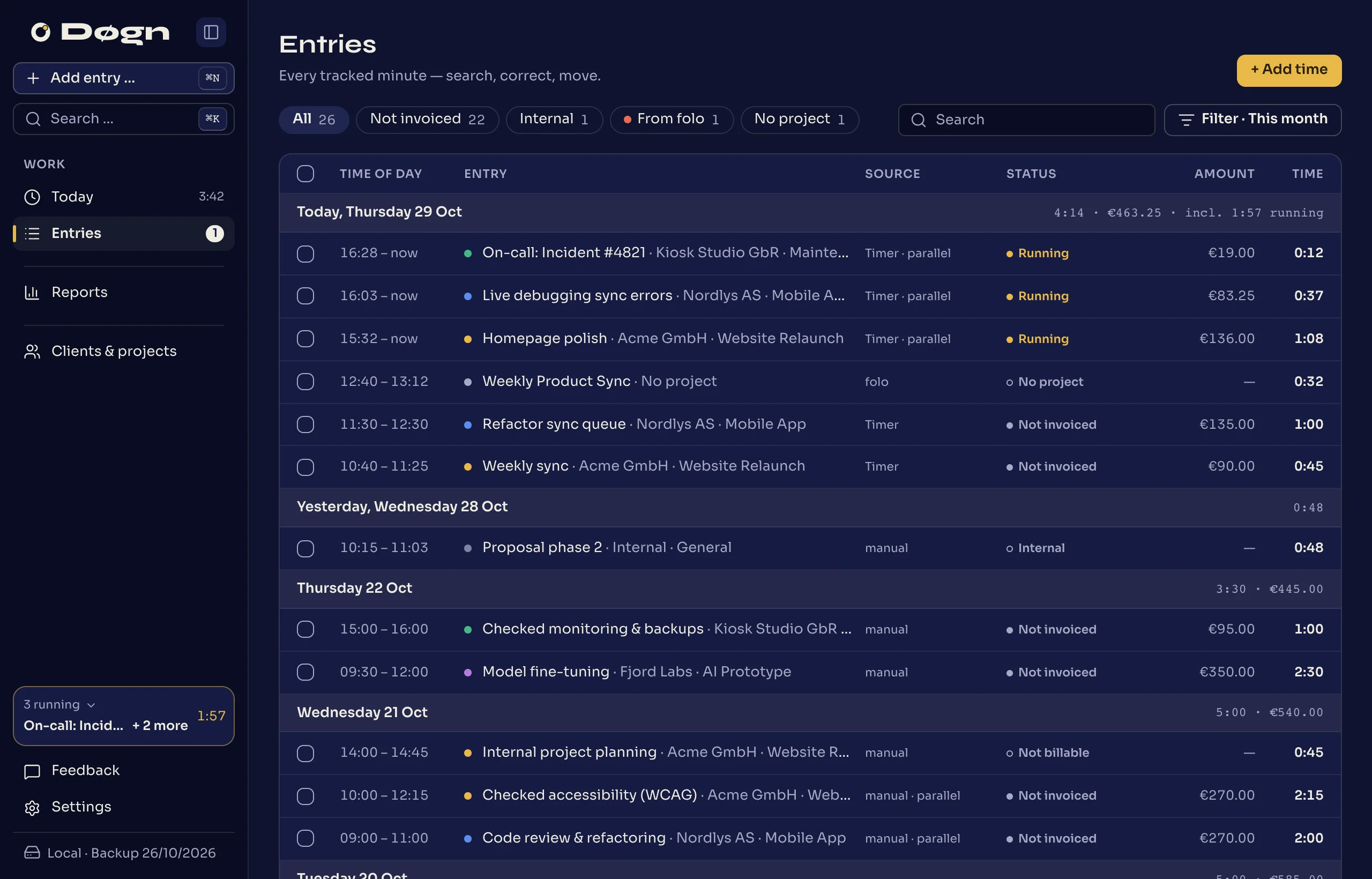
The entries page
This is every tracked minute, sorted by day, with its source (“Timer”, “manual”, “added later”, “folo”) and status. The filters at the top show “All”, “Not invoiced”, “Internal”, “From folo” and “No project”.
The search field looks through your entries, “Filter” narrows by period and client. A setup you need often can be saved under a name, such as “Open at Acme”. You’ll also find it in Ctrl/⌘ K.
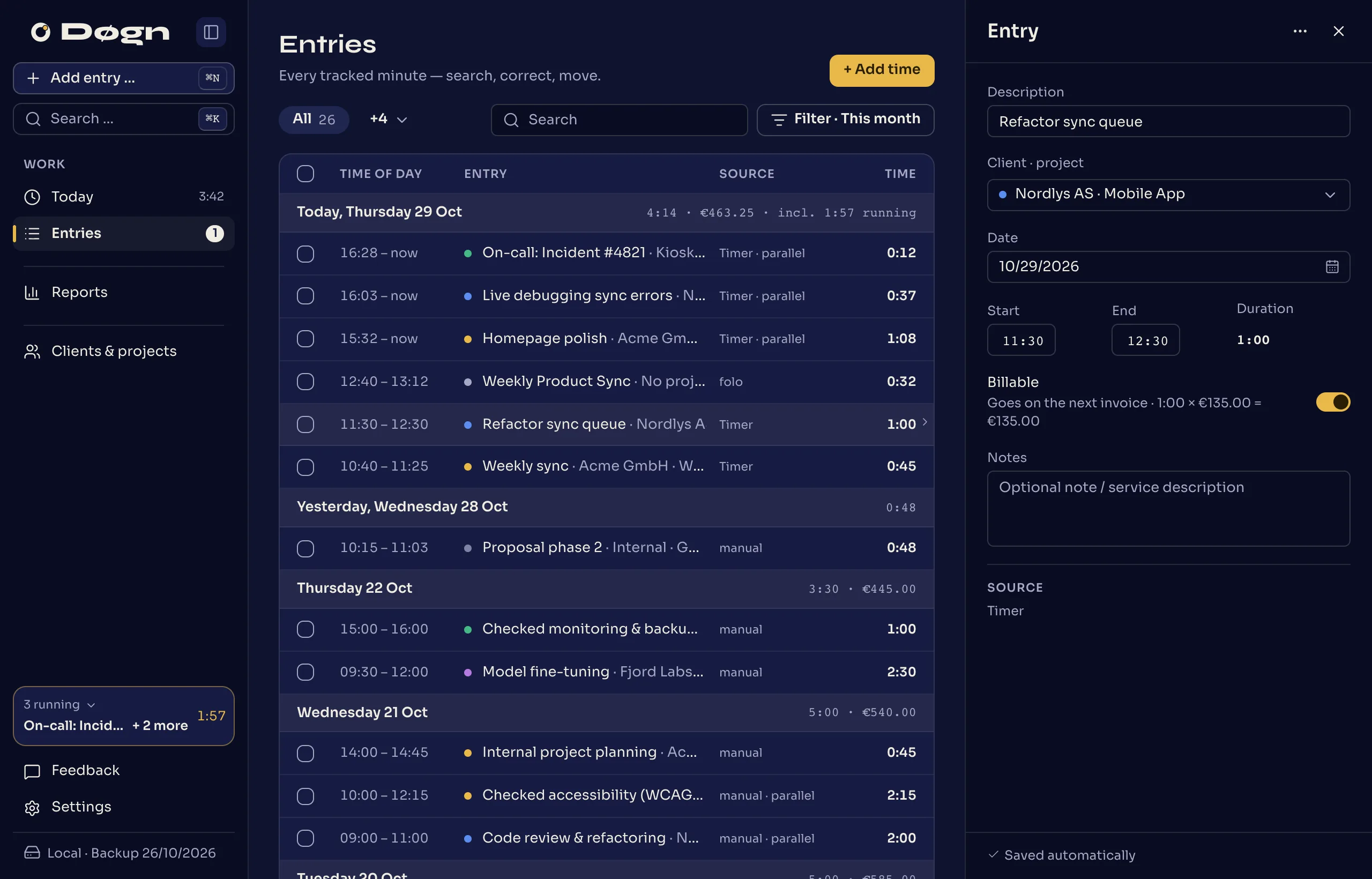
Change an entry
Click a row and all the fields open on the right. Døgn saves changes on its own. Delete sits in the ⋯ menu at the top.
Billed means locked. An entry that’s on an invoice in tjent can’t simply be changed, so the invoice stays right. “Edit anyway…” unlocks it, but the invoiced amount stays frozen. “Open in tjent” takes you to the invoice.
Several at once
Tick a box or press x to select an entry, ⇧ for a range, Ctrl/⌘ A for all. A bar then appears at the bottom: “Project …” moves the selection, “Billable” changes the status, “Delete …” removes it. Invoiced and running entries are left as they are. Esc clears the selection.