Learning path
Settings overview
Last updated: November 2026
“Settings” is a page in the main window, Ctrl/⌘ , takes you there. At the top you can search for every single setting. Whatever you change, Døgn saves right away.
Where things are
- App. “General” (startup, appearance, language, updates), “Keyboard shortcuts”, “Tray & panel”.
- Time tracking. “Tracking” and “AI sessions”.
- Connections. “folo & tjent”, “MCP” and “Webhooks”.
- Data. “Backup” and “Reset”.
- Account. “License”.
- Help. “Help & community” and “About Døgn”.
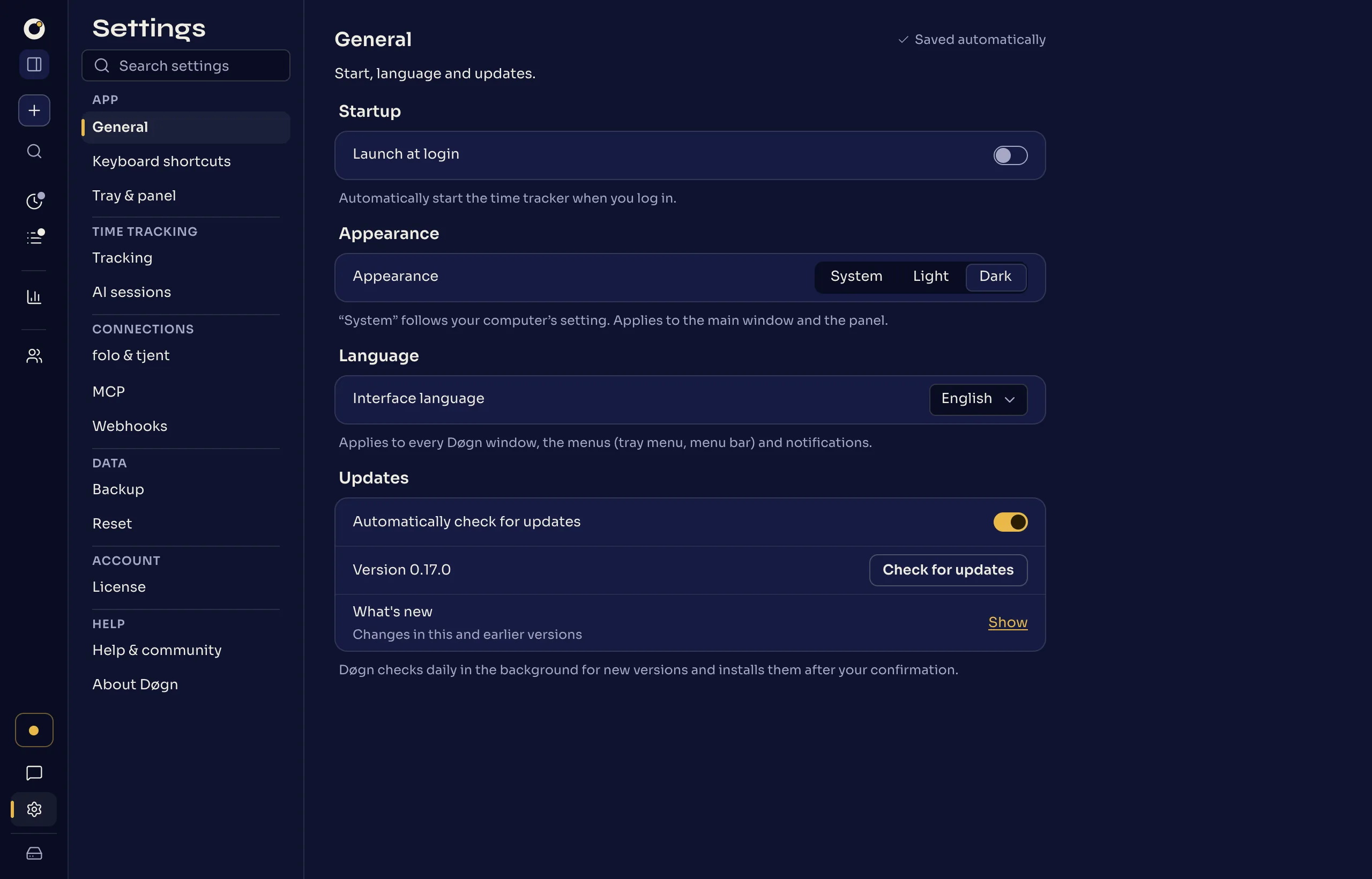
General
“Launch at login” keeps Døgn running after you sign in. Under “Appearance” you pick “System”, “Light” or “Dark”, under “Interface language” Deutsch, English or the system language.
Døgn checks daily in the background for updates and installs them only when you agree. “Check for updates” checks right away. Before an update rebuilds your data, Døgn makes a copy. “What’s new” lists what changed in this and earlier versions.
Tracking
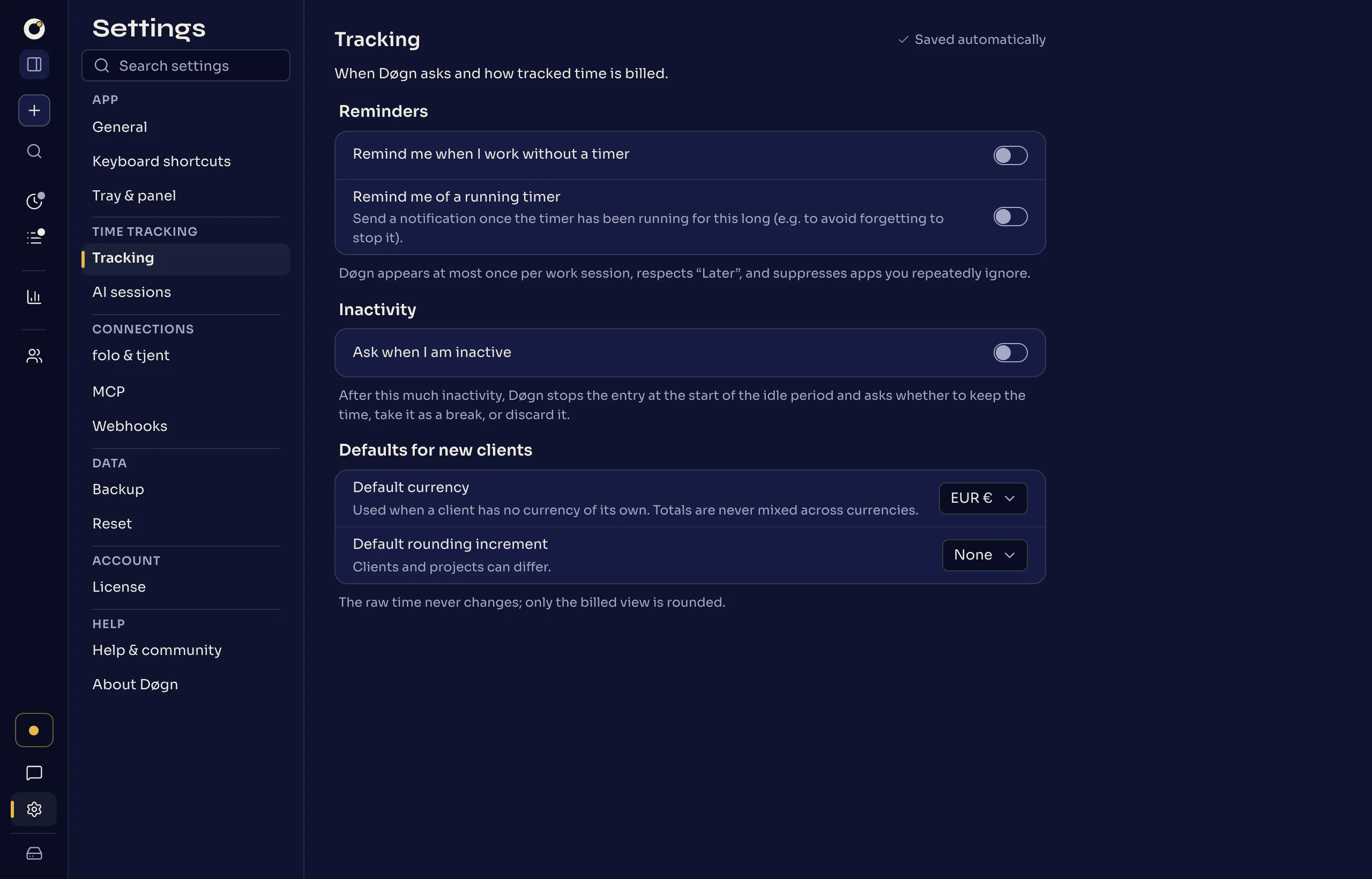
This is where you set when Døgn speaks up. All of it stays off until you switch it on:
- “Remind me when I work without a timer”. Optionally “Only during working hours”, plus the “End-of-day reminder” and “Learn app suggestions”.
- “Remind me of a running timer”. So you don’t forget to stop.
- “Ask when I am inactive”. You choose after how many minutes.
“Defaults for new clients” holds “Default currency” and “Default rounding increment”.
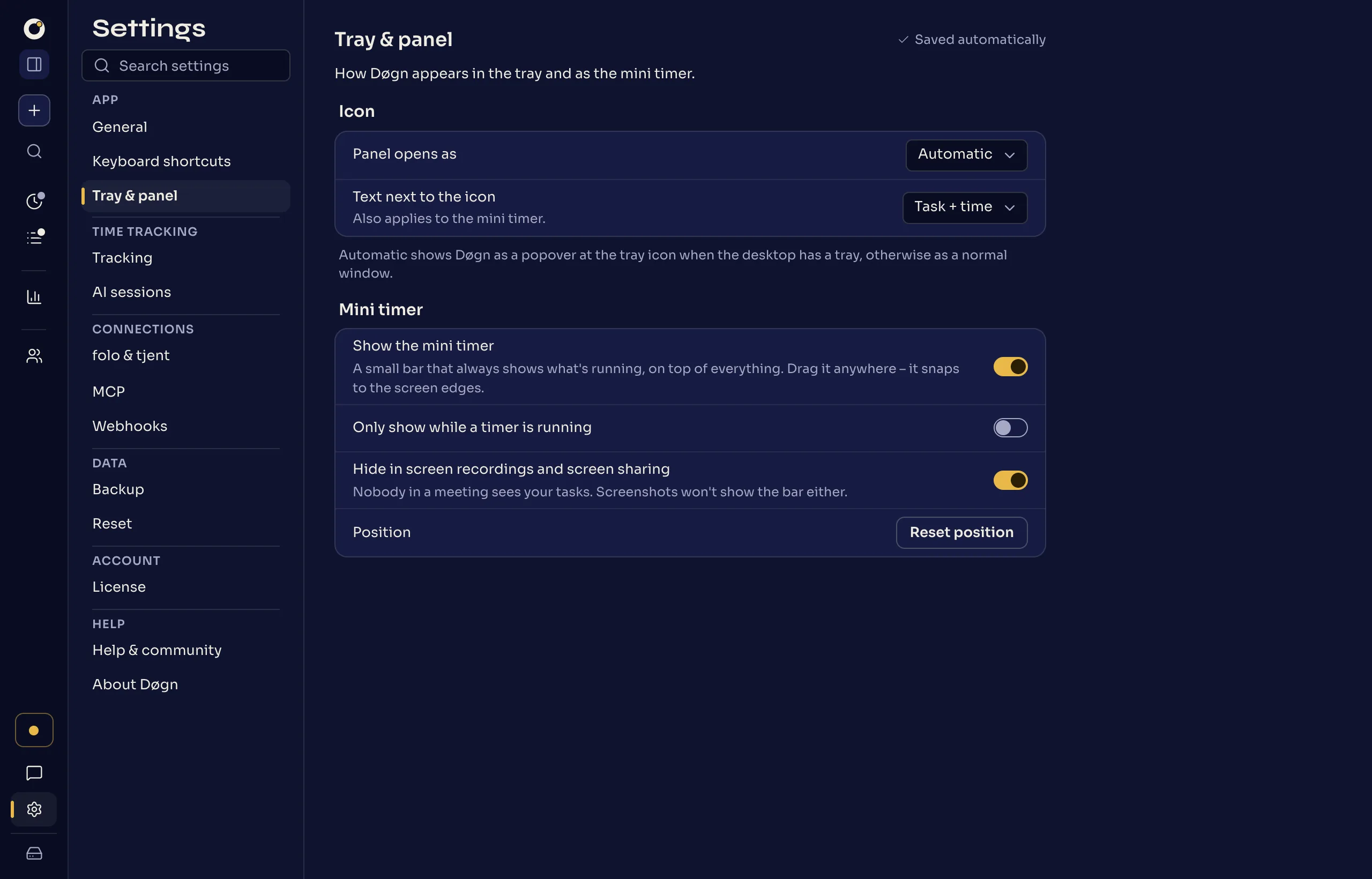
Tray, panel and shortcuts
On Windows and Linux, “Tray & panel” decides whether the panel opens as a “Popover” at the icon or as a “Window”, which text sits next to the icon and whether the mini timer runs. There’s nothing to set there on the Mac.
“Keyboard shortcuts” lets you rebind the panel shortcut or switch it off. On Linux with Wayland, the system asks you to confirm it the first time. The in-window shortcuts are listed there too:
- Ctrl/⌘ K search and commands
- Ctrl/⌘ N add entry
- Ctrl/⌘ 1 to Ctrl/⌘ 4 Today, Entries, Reports, Clients
- Ctrl/⌘ , Settings
- Ctrl/⌘ ⇧ S stop the timer you started last
- Ctrl/⌘ \ collapse or expand the sidebar
- Ctrl/⌘ F search in reports
Help and feedback
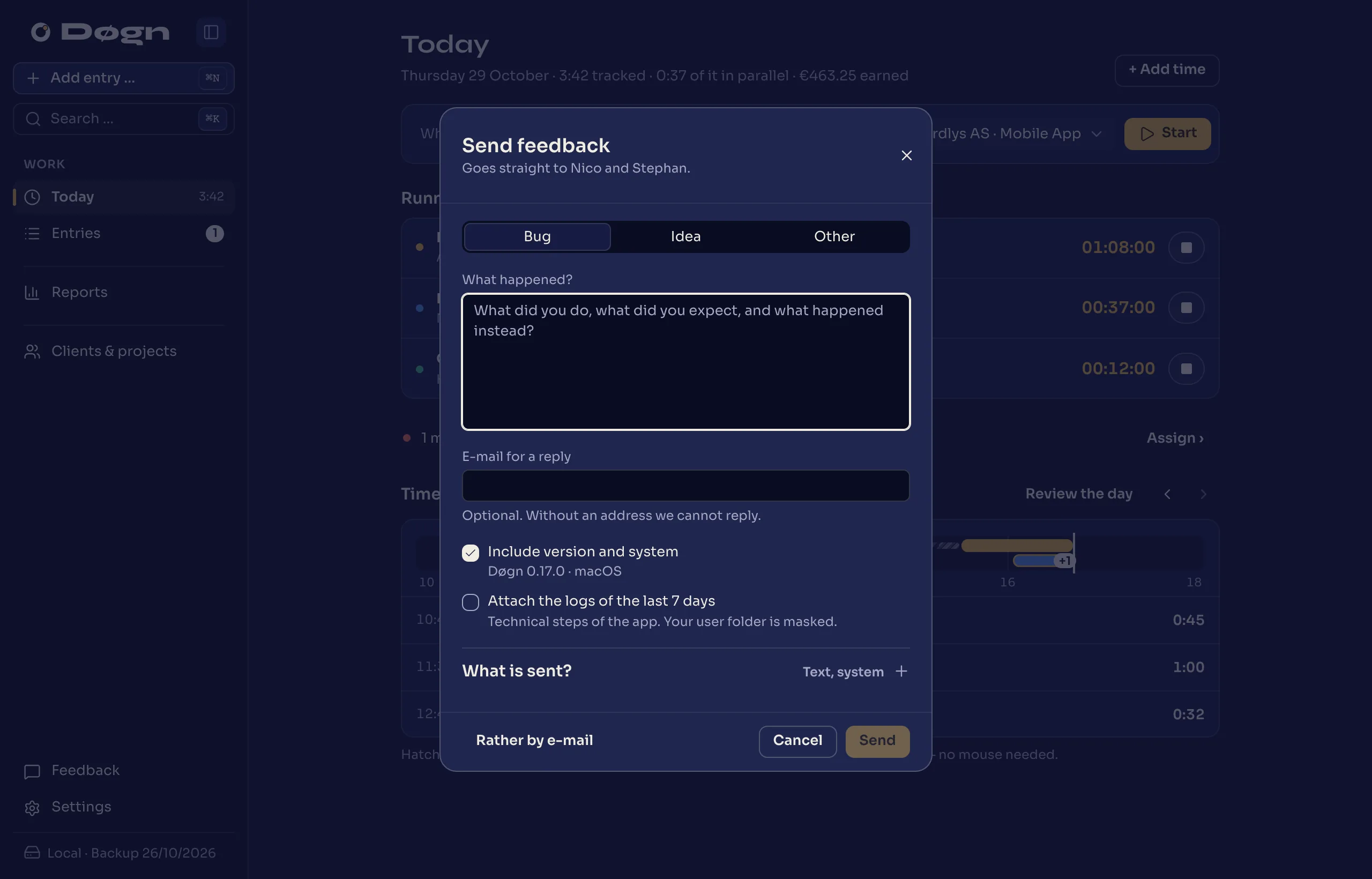
Something’s off, or you have an idea? “Feedback” in the sidebar opens a short form. Before you send, it says exactly what goes along. Version and system are ticked by default, and you can untick them. For a bug you can attach the logs of the last 7 days. An e-mail address is optional, but without it we can’t reply.
“Help & community” opens the log folder and the data folder.