Learning path
Tracking time
Last updated: November 2026
Type what you’re working on, pick the project, press Enter. When you stop the timer, it becomes an entry. You can start from the main window, the panel, the menu at the icon and the mini timer.
The start row
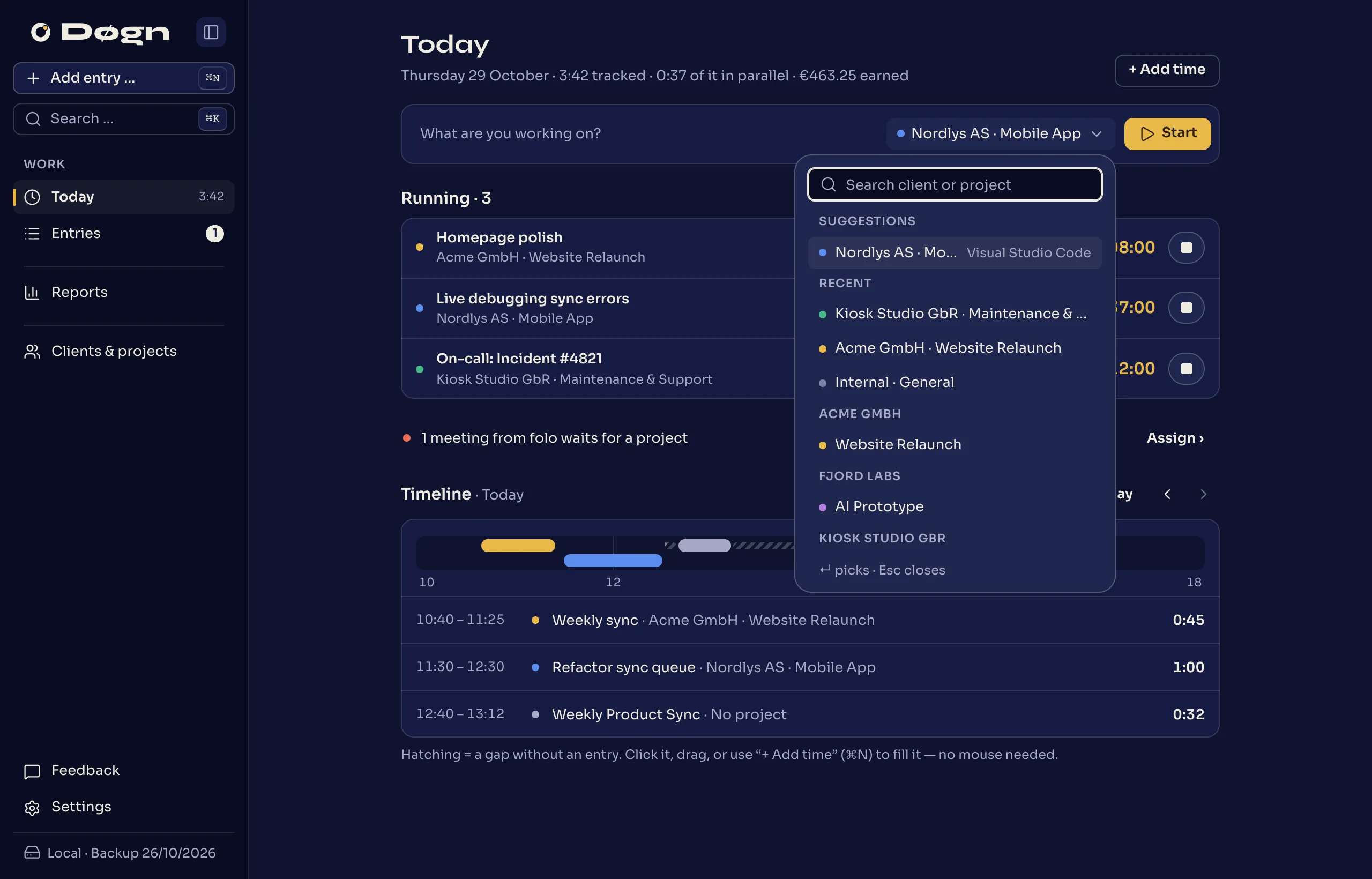
At the top of “Today” you’ll find “What are you working on?”. Next to it you pick the project. The picker shows suggestions and recent projects first, then everything by client. Typing filters the list, ↵ picks, Esc closes.
“Start” or ↵ gets it going. If you leave the text empty, Døgn writes “Working on [project]” into the entry.
Parallel timers
If a timer is already running, Døgn asks what should happen to it: “Stop the running one” or “Start in parallel”. ⇧ ↵ starts in parallel directly. Each timer gets its own lane in the day timeline.
Under “Running” you stop each one separately. Ctrl/⌘ ⇧ S stops the one you started last, and in the panel “Stop all” ends them all at once. When is parallel time fair to bill? See parallel time tracking.
Change a running timer
Wrong client, or started ten minutes late? Open the running entry and correct the description, project or start time. The timer keeps running.
Forgot to stop? Use “Stop at …” in the same entry. You say when you finished, and Døgn books only the time up to then.
Search and commands
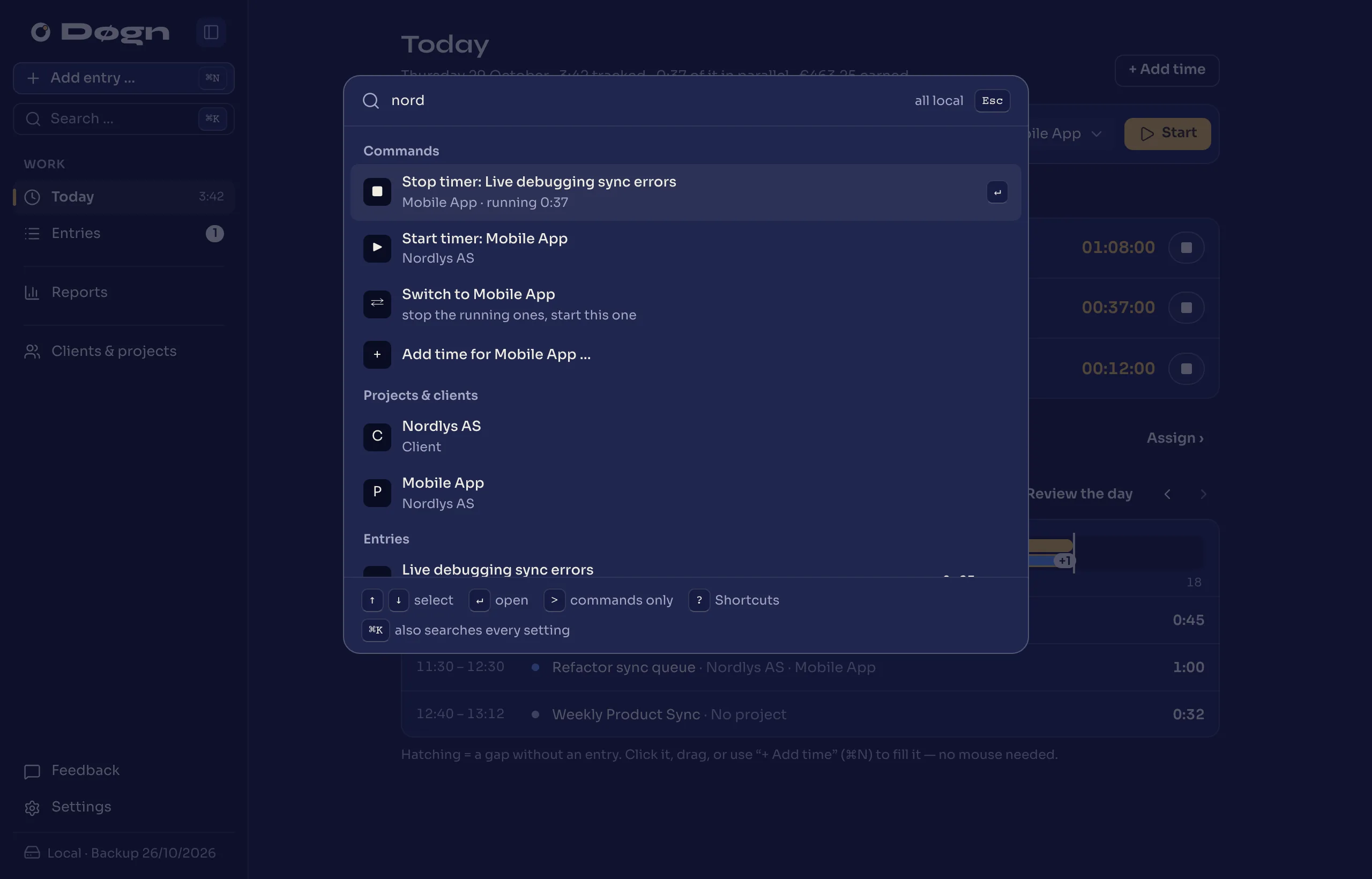
Ctrl/⌘ K opens the command palette. Type a few letters and you’ll find projects, clients, entries, saved filters and every setting. From here you start and stop timers, switch projects or add time without taking your hands off the keyboard. In the panel, the magnifier at the top opens the same search.
The other kveik apps in the palette
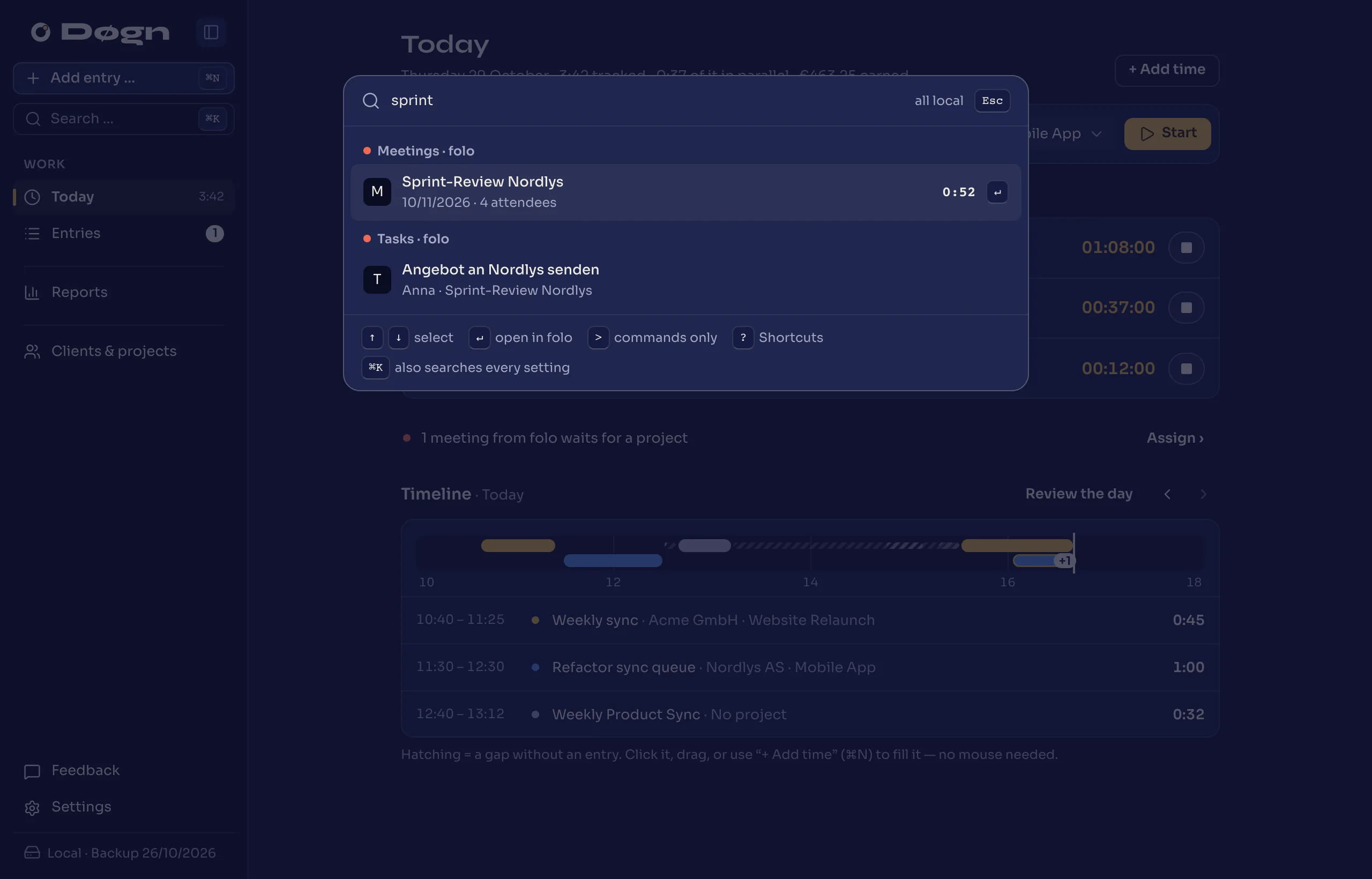
If you have folo, tjent or Møt installed, the palette also finds their things: meetings and tasks from folo, invoices from tjent, contacts from Møt. A result opens in its app, and you run the other apps’ commands right from here. The search runs on your computer.
You can also type a whole sentence, like “yesterday 9 to 11 workshop at Nordlys”, and choose “Understand as a request”. Døgn turns it into a proposal that you check and confirm with “Run”. Nothing happens before that. For this Døgn needs Claude Code or Codex with session tracking switched on, and your sentence goes to that tool. The palette tells you where before it sends anything.
When you forget the timer
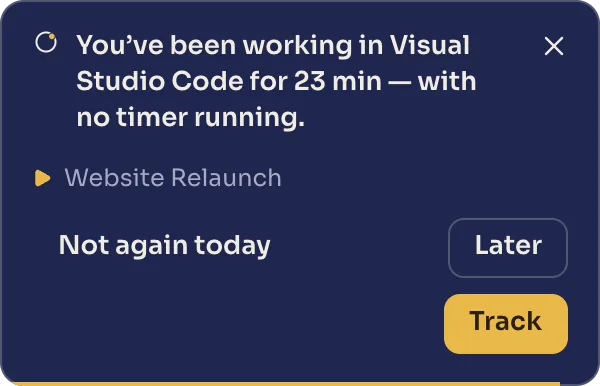
Turn on “Remind me when I work without a timer” under Settings › Tracking. It’s off out of the box. Døgn then speaks up at most once per work session, and only during your working hours if you want. You answer with “Track”, “Later” or “Not again today”.
When you turn it on, Døgn asks whether it may use local activity capture. With it, Døgn notes which app is in front and says something like “You’ve been working in Visual Studio Code for 23 min”. That data stays on your computer. Without it, Døgn reminds you in general terms.
When you were away
If you turn on “Ask when I am inactive”, Døgn stops the entry where you left off and asks you: “Keep”, “As a Break” or “Discard & Stop”. You choose after how many minutes. With “Remind me of a running timer”, Døgn speaks up when a timer runs for a very long time. Both are off out of the box.
If Døgn quits unexpectedly while a timer is running, the app asks on the next start how the time should be recorded.
The mini timer
On Windows and Linux there’s also the mini timer: a small bar that always shows what’s running, on top of everything. Turn it on under Settings › Tray & panel or via “Mini timer” in the menu at the icon.
- No timer running: the bar shows your most recent project, and ▶ starts it.
- A timer running: you see the task and the time, and ■ stops it.
- The arrow on the right opens a list of your timers and recent projects. A click switches there, Ctrl-click starts in parallel.
A click on the bar opens the panel. On Windows the mini timer sits in the taskbar to the left of the tray icons and stays wherever you drag it. If you want, it stays out of screen recordings and screen sharing. On Linux it floats freely, and GNOME on Wayland doesn’t allow it. You won’t need it on the Mac, where the time sits right next to the icon in the menu bar.

Links that start a timer
Other programs can ask Døgn through a dogn:// link to start a timer or add a meeting. Since version 0.17 Døgn asks first: “Start timer?” or “Add meeting?”. Only allow it if you opened the link yourself. Meetings sent by folo still arrive without a question.