Learning path
Day timeline & day review
Last updated: November 2026
Under “Timeline”, your day sits on one line. Each colour is a client. You see right away what’s tracked and what’s missing. You fill what’s missing right there, or you review the whole day in one go in the evening.
Reading the timeline
Each entry is a bar in its client’s colour. Grey means it has no project yet, like a meeting from folo. When two things run at once, each gets its own lane. If there are more than fit, the small counter expands them.
Hover over a bar to see the details. A click opens the entry. The arrows page to other days. Below the band, the day’s entries appear again as a list.
Filling gaps
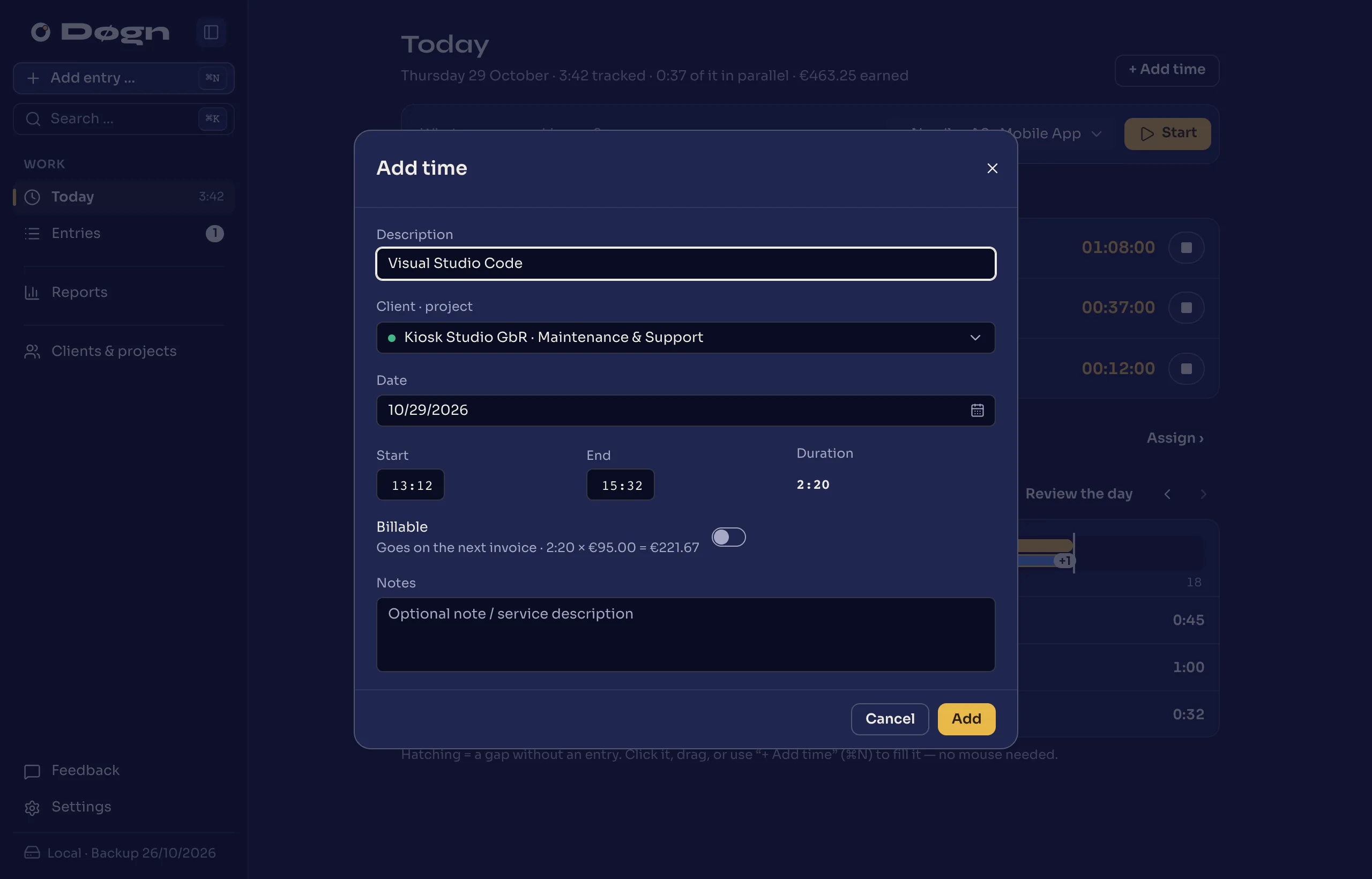
Hatching means there’s a gap without an entry. Click it and the add-time form is already set to exactly that time. You can also drag across the band to mark a stretch. Without a mouse, use Ctrl/⌘ N.
If you’ve allowed activity capture, Døgn suggests the app you were in as the description, and picks the matching project once it has learned it. Lunch stays lunch: a gap you don’t fill simply stays empty.
Review the day
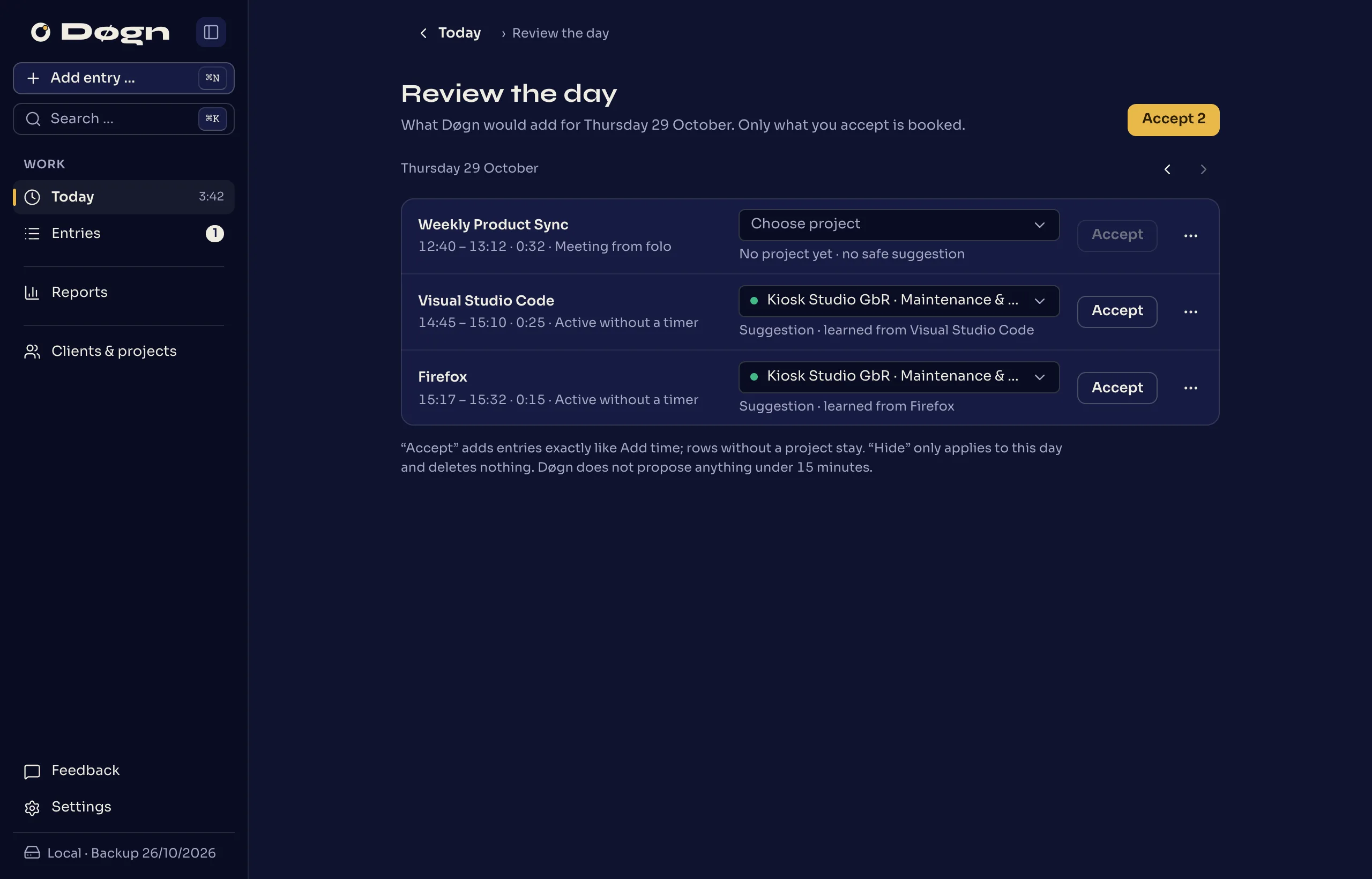
“Review the day” sits on “Today” next to the timeline. Døgn lists everything that’s still missing from the day:
- “Gap”. Time between two entries.
- “Active without a timer”. You were at your computer but no timer ran. This only shows up with activity capture allowed.
- “Meeting from folo”. A call that has no project yet.
- “AI session”. A session you haven’t confirmed yet.
Each row comes with a suggested project and says where it comes from, such as “learned from Visual Studio Code”. You pick another project, open “Edit …” or take “Accept”. A button at the top accepts every row that has a project. Anything that doesn’t fit you hide for this day from the ⋯ menu. Nothing gets deleted, and only what you accept gets booked.
The end-of-day reminder
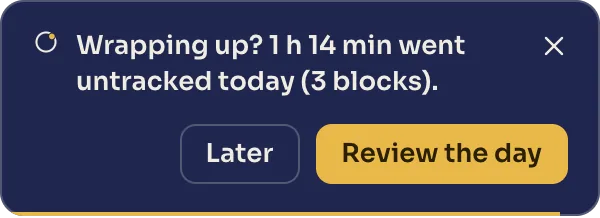
With the “End-of-day reminder” under Settings › Tracking, Døgn asks at the first quiet moment after work whether anything is still open. “Review the day” takes you straight to the list above. The reminder belongs to “Remind me when I work without a timer” and stays off with it until you switch it on.